
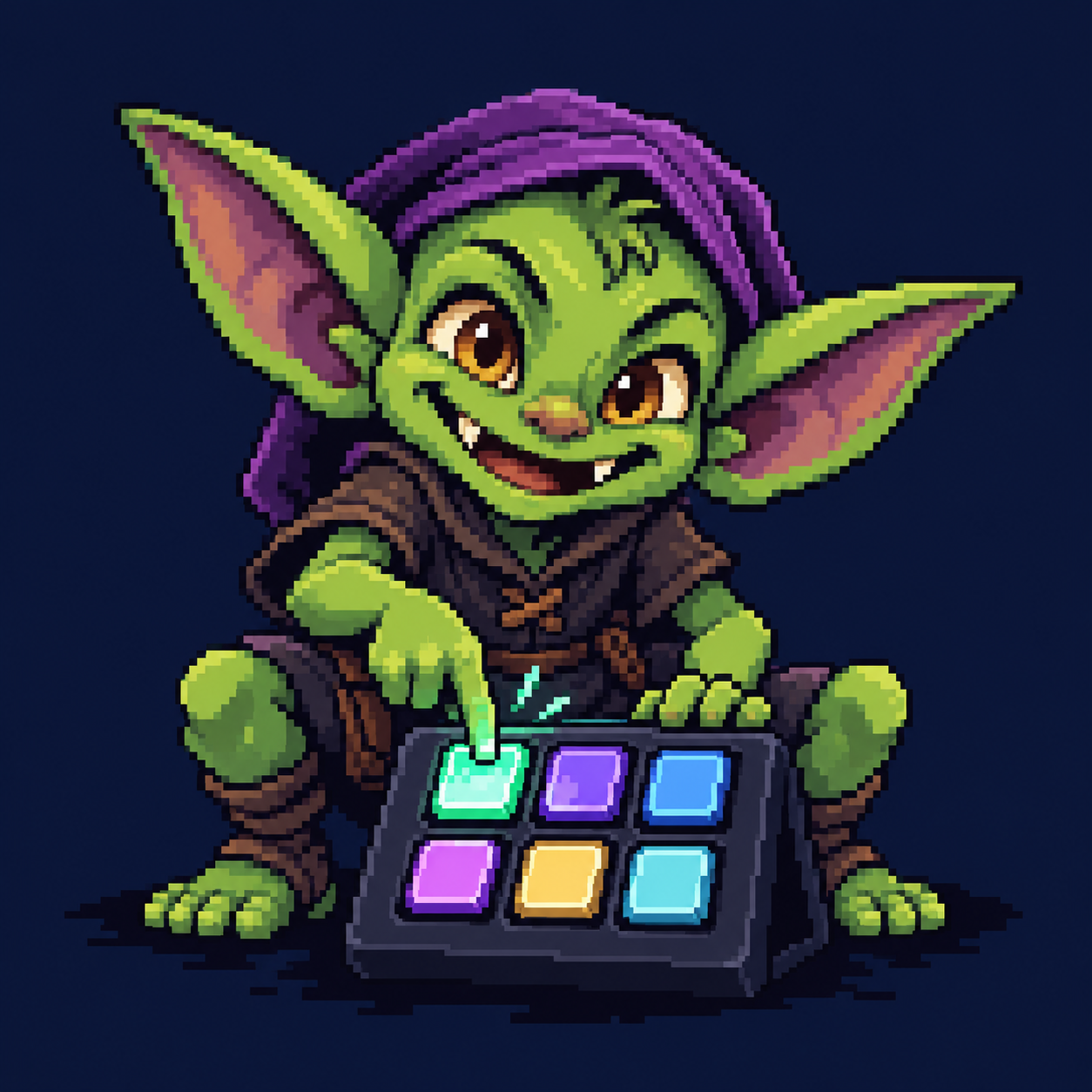
Setup & everyday use Mini + MK.2
Your consoles.
Your buttons.
Turn a six-key Stream Deck Mini or 15-key Stream Deck MK.2 into a MiSTer launcher with animated character buttons, Update All, brightness control, and keyboard shortcuts. Use either deck on its own or both together.
A shareable, offline guide • All button previews are embedded in this file.
Choose your deck
Six-key Mini or 15-key MK.2
Stream Deck Mini · six pages
Update All is on Home, bottom left (button 4). Button 5 cycles five brightness levels; hold it one second to jump to Navigation. Release button 6, Next, to cycle pages.
Stream Deck MK.2 · two pages
The 15-key layout and setup continue below. Use the Dual bundle for MK.2 alone or both decks. Each deck has its own service, artwork, configuration and brightness.
Install Mini: copy the package’s complete Scripts contents, including hidden .config, into /media/fat/Scripts/. Connect your Mini and run ButtonGoblin_Mini_Enable.sh. For both decks, use the Dual bundle and ButtonGoblin_Both_Enable.sh. All six configurations, the native binary, and artwork are included. The 15-key editor exports do not fit Mini.
Y/N send keyboard input to MiSTer’s active screen; they do not answer the background Update All process. Update All must be installed separately at /media/fat/Scripts/update_all.sh.
Page 1 / Introduction
15-key MK.2 · consoles ready to launch
Physical buttons are numbered 1–15, from left to right across each row. These are the actual bundled character GIF previews, enlarged with nearest-neighbor rendering. On MiSTer, the launcher uses prepared animation frames. Configuration indices remain 0–14: physical button 15 is key.14.
STREAM DECK MK.2


The Update All button is static when ready. Its running and finished animations are shown below. Preview timing in a browser can differ from playback on the hardware.
See every default launch target
| Key | Button | Target / behavior |
|---|---|---|
| 01 | NES | _Console/NES_*.rbf |
| 02 | SNES | /media/fat/_@Favorites/Donkey Kong Country (USA) (Rev 2).mgl |
| 03 | Genesis | _Console/MegaDrive_*.rbf |
| 04 | TurboGrafx-16 | _Console/TurboGrafx16_*.rbf |
| 05 | PlayStation | _Console/PSX_*.rbf |
| 06 | Saturn | _Console/Saturn_*.rbf |
| 07 | Nintendo 64 | _Console/N64_*.rbf |
| 08 | Mega CD | _Console/MegaCD_*.rbf |
| 09 | Game Boy Advance | _Console/GBA_*.rbf |
| 10 | Game Boy | _Console/Gameboy_*.rbf |
| 11 | Master System | _Console/SMS_*.rbf |
| 12 | Neo Geo | _Console/NeoGeo_*.rbf |
| 13 | The Simpsons | _Arcade/The Simpsons (4 Players World, set 1).mra |
| 14 | Update All | Scripts/update_all.sh |
| 15 | Brightness | Five brightness levels |
Two game shortcuts need exact installed files. SNES/Kirby launches Donkey Kong Country through the named favorite .mgl; Simpsons/Bart launches the named arcade .mra. Change these paths to match your own installation. Genesis uses the MiSTer MegaDrive core.
Page 2 / Installation
Install in a few steps
You need a MiSTer, an Elgato Stream Deck MK.2 with 15 keys, a USB connection, and the ButtonGoblin_v1.zip release. Install the cores, BIOS files and games you intend to launch separately.
- Extract the release ZIP on your computer.
Keep the included
Deck_Editorfolder on your computer for customization. - Stop an existing installation before replacing files.
Wait for any Update All job to finish, then run
ButtonGoblin_Disable.shfrom MiSTer’s Scripts menu. Back up your customizedbuttons.confor saved editor project. - Copy the supplied Scripts contents onto the SD card.
Merge them into the existing
/media/fat/Scripts/folder. Replace this release’s supplied files and keep unrelated scripts. Make sure the hidden.configfolder is copied too. - Connect the Stream Deck and enable it.
Connect it to MiSTer’s USB hub. In MiSTer’s Scripts menu, run
ButtonGoblin_Enable.sh. This starts the launcher and configures startup at boot. Wait for the startup artwork to finish fading before pressing a key. - Test a console button.
Check that the matching core is installed and launches. If a button shows an error, check its target path in the editor or the troubleshooting section below.
Normal operation is local. No Python, Elgato desktop software, or network connection is required to use the launcher. Update All needs its own installation and network access to fetch updates. This package supplies no ROMs or BIOS files.
Connect it with a USB-A–to–USB-C data cable
Plug the USB-C end into the Stream Deck MK.2 and the USB-A end into an available USB port on MiSTer’s connected USB hub. This single cable carries power and button/display data. Use a cable rated for USB 2.0 data or faster; a charge-only cable will not let MiSTer detect or control the deck.
If your deck came with a USB-C–to–USB-C cable, use a suitable USB-A–to–USB-C data cable for MiSTer’s USB-A ports, or a data-capable adapter. Box contents have changed over time; check the cable you have. Use a short, reliable cable and a properly powered hub if connections are unstable.
Hardware reference: Elgato MK.2 specifications and included cables. Connect through the USB host hub, not a power-only port.
Page 3 / Shortcut layout
Page two: navigate and map controllers
Keep your console buttons on page one. Hold button 15, Stay Puft, for one second to open this shortcut page. Release the button, then use the arrows, Menu, Enter, Space, and Escape. Each shortcut has its own animation. Held buttons turn green until release; Back morphs into Stay Puft every fifth cycle and returns to page one when released. These previews show the bundled page-two artwork.


Tap versus hold: a quick tap on Stay Puft changes brightness on release; a one-second hold opens page two without changing brightness. On page two, button 15, BACK, returns to your animated console layout.
| Physical button | Shortcut | Use |
|---|---|---|
| 3 | Up | Move up |
| 1 | Menu / F12 | Open or close MiSTer’s menu |
| 10 | Enter | Select an item or finish mapping |
| 7, 8, 9 | Left, Down, Right | Navigate menus |
| 11 | Space | Skip a controller-mapping entry |
| 5 | Escape | Back out or cancel mapping |
| 15 | Back | Return to page one |
Map an Xbox controller
- Open the shortcut page, then press Menu.
Use arrows and Enter to open MiSTer’s controller-mapping option. Its exact location depends on the menu/core currently loaded.
- Respond with your Xbox controller.
Press the controller buttons requested by MiSTer. The Stream Deck supplies keyboard shortcuts; it does not replace or pair the controller.
- Skip, finish, or cancel.
Use Space to skip an entry, Enter to finish mapping, or Escape to cancel.
- Return to your games.
Press Back to restore page one. Brightness is retained, and Update All continues if it was already running.
Customize page two
Open editor/index.html and choose 2 · Shortcuts in the page selector, or edit buttons-shortcuts.conf directly. Action names are space, menu, enter, up, down, left, right, escape, back, and none. Keep a Back button available.
# Physical button 11 = configuration key 10
key.10.label=SPACE
key.10.action=space
key.10.image=custom/page2_10.jpg
key.10.trigger=press
Safe page changes
Switching clears queued launches and releases held shortcuts. Inputs wait while the new page finishes drawing; already-held buttons must be released before they can act on that page.
Restart and configuration reload return to page one. USB reconnect retains the current page. Page switching has passed host tests; confirm it on your hardware.
Page 4 / Everyday controls
Update All, brightness & startup
Button 14 · Update All
Install Update All separately at /media/fat/Scripts/update_all.sh. Pressing button 14 runs it in the background. Repeated presses during that run do not start another copy.
Ready
Press button 14 to start your installed updater.

Updating
The arrow circles while Update All runs in the background.

Finished
A green pulse settles to gray; the pulse repeats about once a minute.

Failed
Check the logs, fix the cause, then press again.
The finished or failed state remains until the next attempt. Update All continues while page two is visible; return to page one to see its status. Restarting the launcher clears it. Supported Update All builds receive non-interactive settings; use MiSTer’s Scripts menu when you want the updater’s interactive settings.
To see progress over SSH:
tail -f /tmp/buttongoblin.script.logThe log retains recent output up to 128 KiB. Update All has a one-hour deadline. Stopping or enabling the launcher stops a launcher-owned updater, so wait until it finishes before restarting or upgrading.
Button 15 · Stay Puft brightness
Each short tap and release advances to the next higher level, then wraps back to the first:
10%25%50%75%100%
The default is 65%, so the first press selects 75%. The cycle never turns the display fully off. Restarting restores the configured brightness. Hold this button for one second to open page two. A long press does not also change brightness.
First connection · MiSTer mosaic

A stationary title screen fades in, holds, then fades out before the normal animated buttons fade in. Inputs are ignored during this sequence. Reconnecting USB restores the buttons without replaying it.
Page 5 / Customize & help
Assign icons, games & scripts

Open editor/index.html on your computer and choose the console or shortcut page. Export includes both configurations and their artwork. Save project keeps both pages; older single-page projects import with the default shortcut page. Keep page-one key.14.action=cycle for the brightness tap/hold page switch. The editor prepares files locally; it does not connect to MiSTer or execute the scripts you assign.
- Select a page-one key and set its action.
Choose
launchfor a core/game,scriptfor a shell script,update_allfor the updater, orcyclefor brightness. Other controls includedim,bright,reload,restartandnone. - Choose the target and input trigger.
Use a core
.rbf, game launcher.mgl, or arcade.mra. Relative paths start at/media/fat; absolute paths work too. Choosepress,release, orhold. Hold fires once per hold, with a configurable 100–10,000 ms delay. - Choose your artwork.
Use a console preset or upload an image/GIF for Normal, Request and Error. Keep pixel art crisp using the editor’s nearest-neighbor conversion. Changing a label does not replace text already drawn into an image.
- Save your editable project, then export.
Save project downloads JSON; Open project restores it. The editor does not automatically retain your work when closed. Export for MiSTer downloads configuration and artwork, without the launcher binary.
- Apply the exported layout.
After any running updater finishes, run Disable. Merge the export’s
Scriptscontents onto the SD card, then run Enable. Keep the installed launcher binary. Reset layout restores animated defaults; Use default restores a static icon.
Launch a favorite game
key.1.action=launch
key.1.target=_@Favorites/My Game.mgl
key.1.trigger=press
Use the real filename from your MiSTer. A raw ROM path cannot be sent directly to the core loading interface.
Run your own script
key.0.action=script
key.0.target=Scripts/MyScript.sh
key.0.trigger=hold
key.0.hold_ms=700
Ordinary scripts run through /bin/sh, with no extra arguments and a 60-second deadline. Only one script or updater runs at a time.
Core wildcard paths select the lexicographically latest matching filename. Use an exact path when you want to pin a particular core. GIF imports are limited to 1024×1024, 128 source frames and 30 seconds; exported animations are limited to 32 frames and the total configured image cache to 4 MiB.
Files
A tidy installation
The app lives directly under Scripts/.config/buttongoblin/, with no versioned subfolder. Only Enable and Disable appear as management scripts in MiSTer’s Scripts menu.
| Location | Purpose |
|---|---|
/media/fat/Scripts/ButtonGoblin_Enable.sh | Validate, start/restart the launcher and enable boot startup. |
/media/fat/Scripts/ButtonGoblin_Disable.sh | Stop the launcher and disable boot startup; retain configuration and artwork. |
/media/fat/Scripts/.config/buttongoblin/buttongoblin-mister | Native launcher binary. |
/media/fat/Scripts/.config/buttongoblin/buttons.conf | Page-one actions, paths, triggers and brightness. |
/media/fat/Scripts/.config/buttongoblin/buttons-shortcuts.conf | Page-two shortcut actions and icons. |
/media/fat/Scripts/.config/buttongoblin/icons/ | Prepared JPEGs, animations and GIF previews. |
/media/fat/Scripts/.config/buttongoblin/extras/ | Additional management and diagnostics scripts. |
/media/fat/Scripts/.config/buttongoblin/source/ | Source code, artwork tools and tests; build tools run on a computer. |
Deck_Editor/ on your computer | Offline configuration editor. |
Show hidden files when copying. On Windows, turn on View → Show → Hidden items; on macOS Finder, press Command–Shift–period. The .config directory contains the actual application.
Troubleshooting
Troubleshooting & recovery
Page two does not appear or shortcuts fail
Hold Stay Puft for at least one second. Confirm that buttons-shortcuts.conf, its artwork, and the updated binary were copied. Keep page-one key.14.action=cycle. Keyboard shortcuts require /dev/uinput; check diagnostics for a virtual-keyboard error.
No response or blank buttons
Check power and the USB connection, confirm the hidden app folder was copied, then run Disable followed by Enable. Let the startup fade finish. If necessary, reconnect the Stream Deck and check diagnostics.
A console or game does not launch
Check the configured filename, core, BIOS and game installation. SNES uses the specific Donkey Kong Country favorite; Genesis uses MegaDrive. A SENT indicator means the command was written, not that MiSTer finished loading it.
Update All shows FAILED or does not start
Confirm /media/fat/Scripts/update_all.sh and Bash are installed. Check the script log below. Another script may already be running. Fix the issue and press again, or run the updater interactively from MiSTer’s Scripts menu.
Artwork is missing, stale or flickering
Use a fresh export from the matching editor, copy its artwork along with buttons.conf, and restart with Disable/Enable after the updater finishes. Imported GIFs must be converted by the editor; pointing a runtime image entry at an ordinary GIF is insufficient. Try a powered USB hub if uploads are unstable.
How does recovery work?
A supervisor restarts crashed workers with a 1–30 second backoff and detects a 20-second stall. USB errors trigger reconnection. Held keys after reconnect wait for release, and queued actions are cleared to avoid replay. Hardware or driver faults can still require unplugging or rebooting.
Will animations affect MiSTer?
The native worker uses prepared frames, with no GIF decoding on MiSTer and no growing frame queue. USB writes and image memory are bounded. The service uses low CPU priority and requests idle disk priority where supported. Static icons produce the lowest USB traffic; scripts you launch can have their own resource demands.
Collect diagnostics over SSH
sh /media/fat/Scripts/.config/buttongoblin/extras/ButtonGoblin_Diagnostics.shThe report is saved at /media/fat/Scripts/.config/buttongoblin/diagnostics.txt. These temporary logs are also useful:
/tmp/buttongoblin.log
/tmp/buttongoblin.script.log
/tmp/buttongoblin_start.log
/tmp/buttongoblin_boot.log